Create backup rules
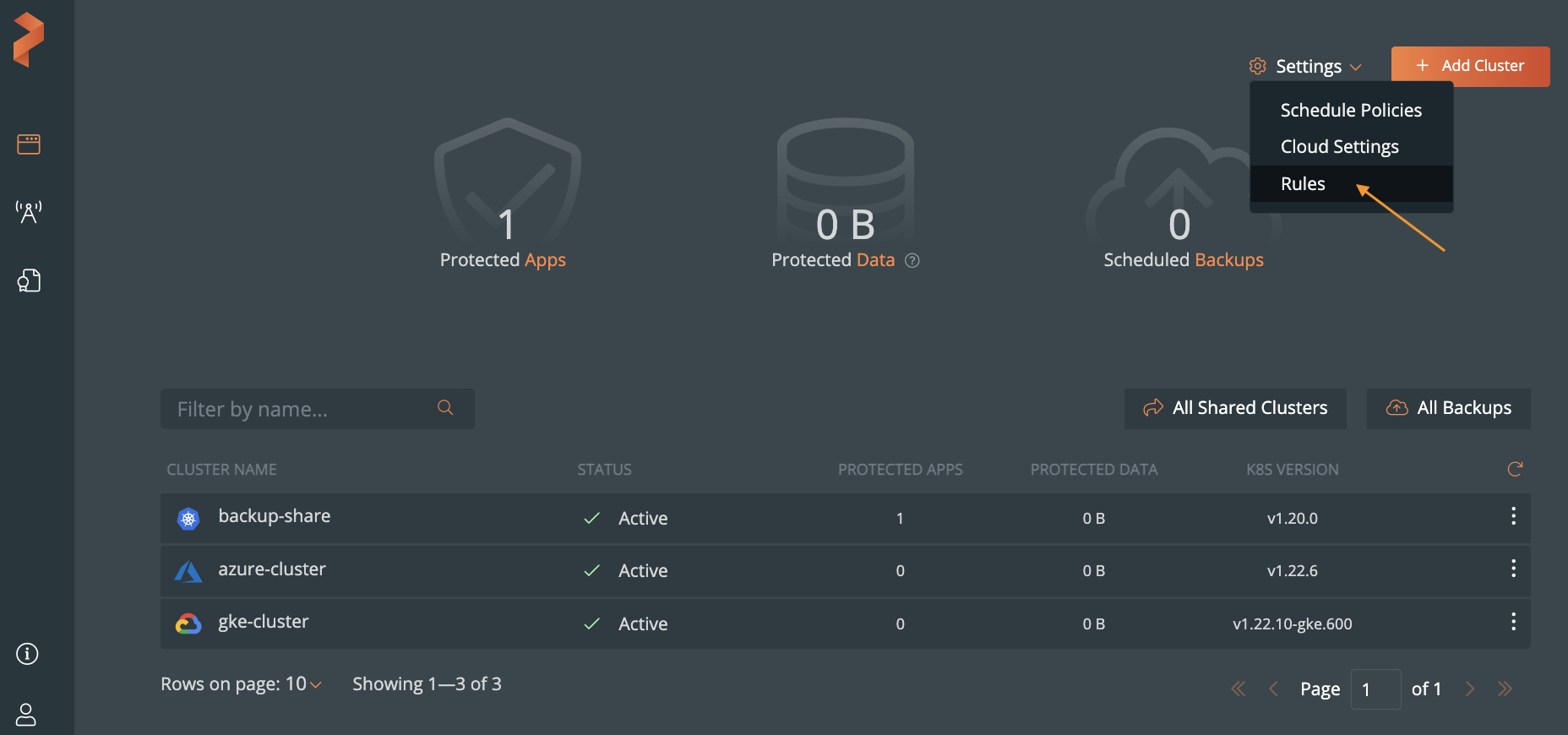
From the home page, select Settings, Rules to open the cloud settings page:
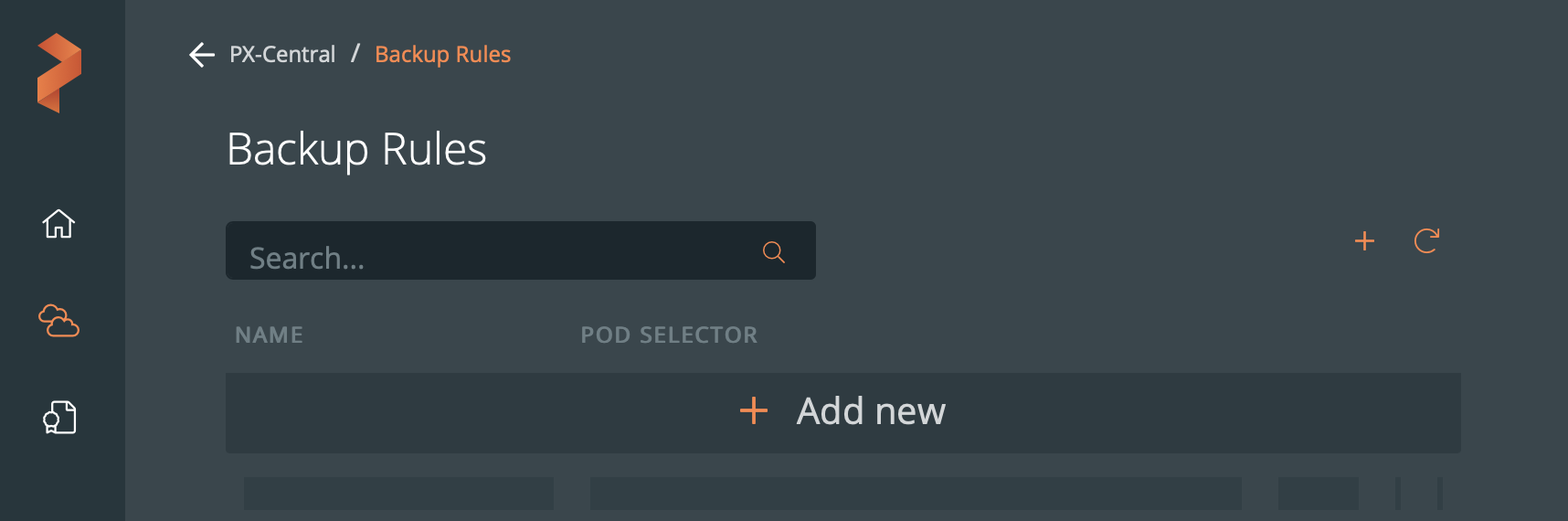
Select Add new:
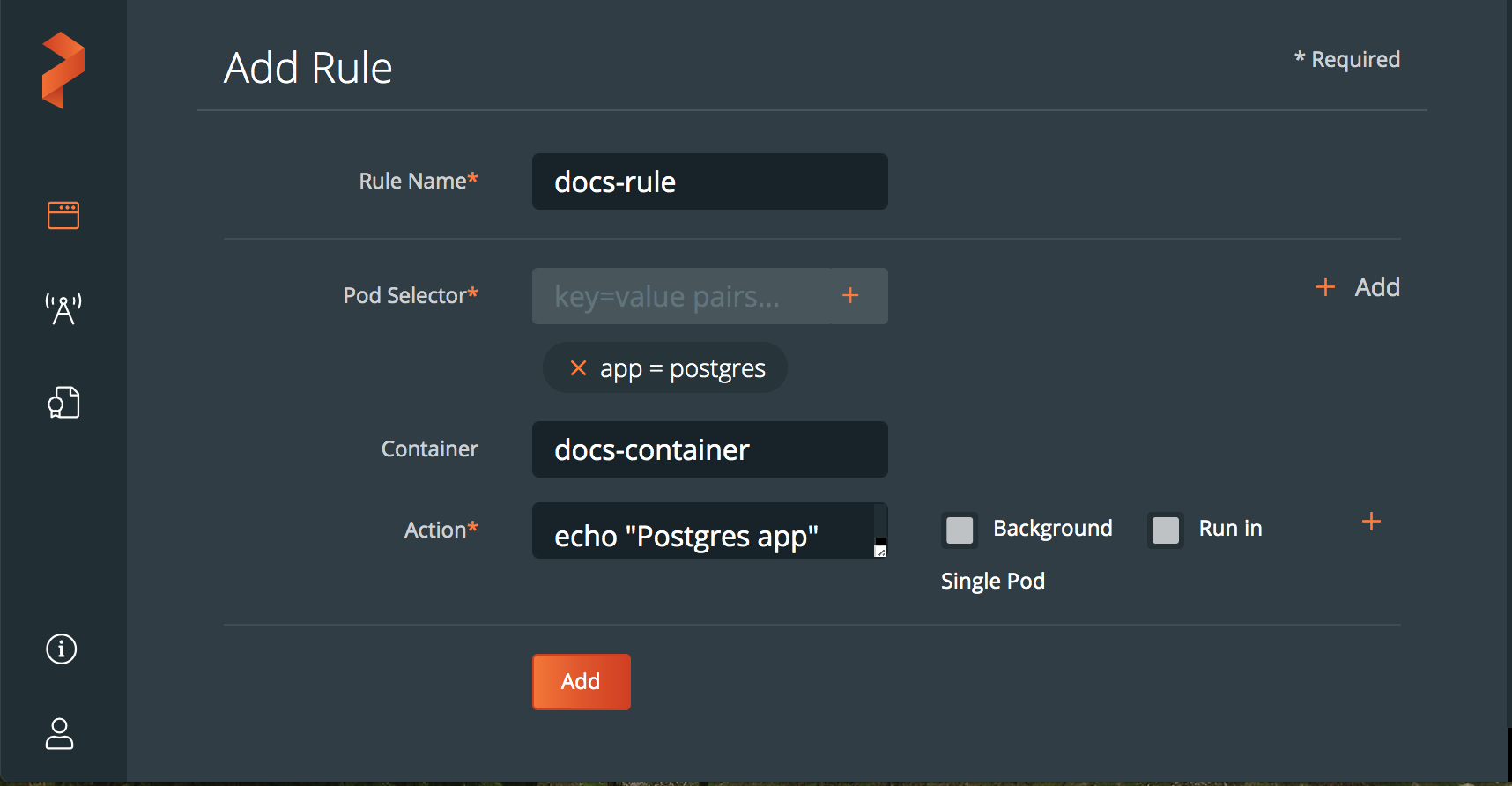
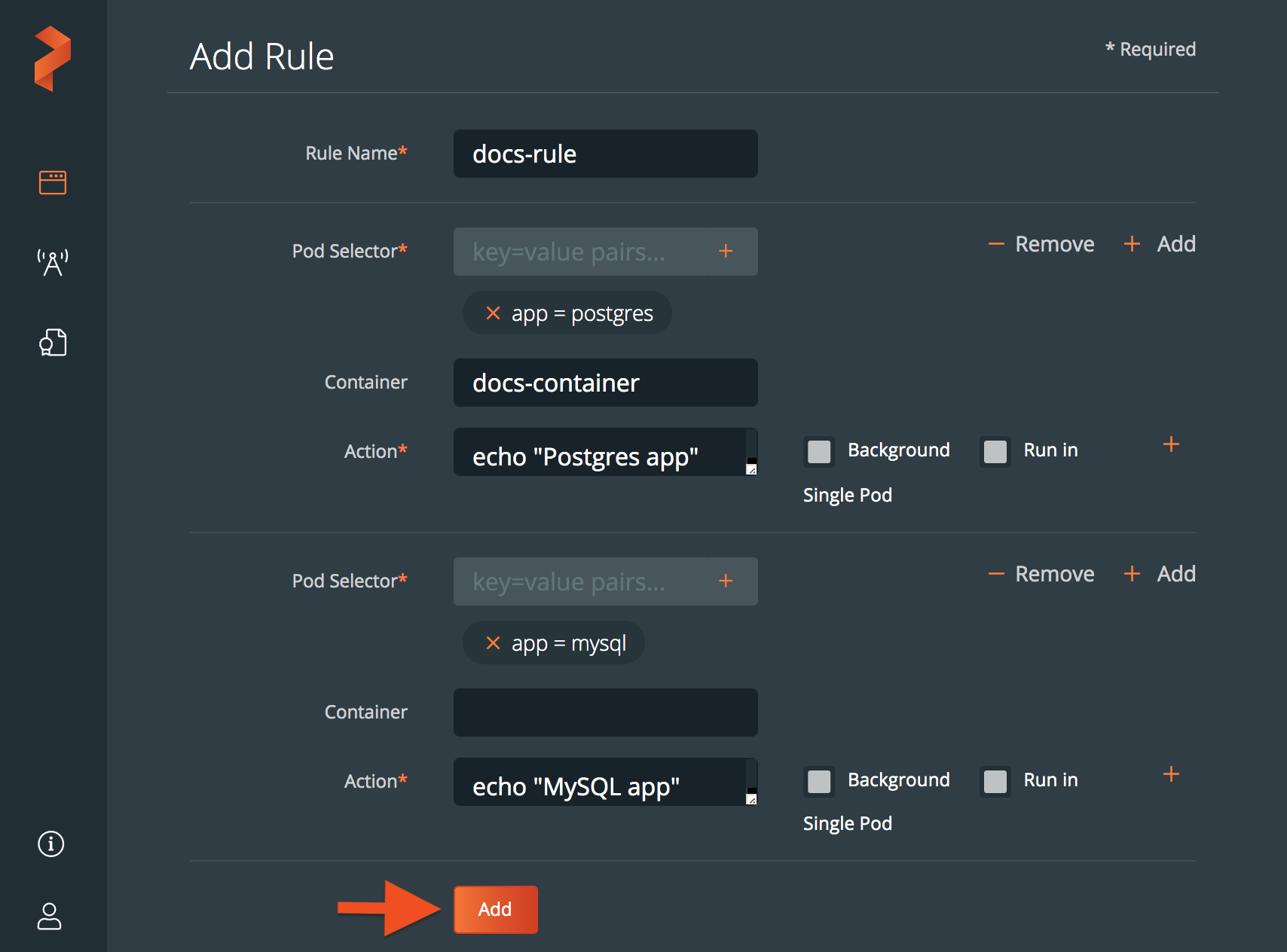
Build your rule by populating the following fields:
- Rule Name: Enter a descriptive name for your rule
- Pod selector: Enter any label selectors based on your pod’s labels. For example,
app = mysqluses the app label to select pods runningmysql. Use any of the equality-based selector operators. - Container (Optional): Enter the optional name of the container to which Portworx Backup will apply the rule.
- Action: Enter any commands you want to execute when the rule is triggered.
- Background: Enable this if you want the rule to run in the background.
- Run in single pod: Run this rule in a single pod.
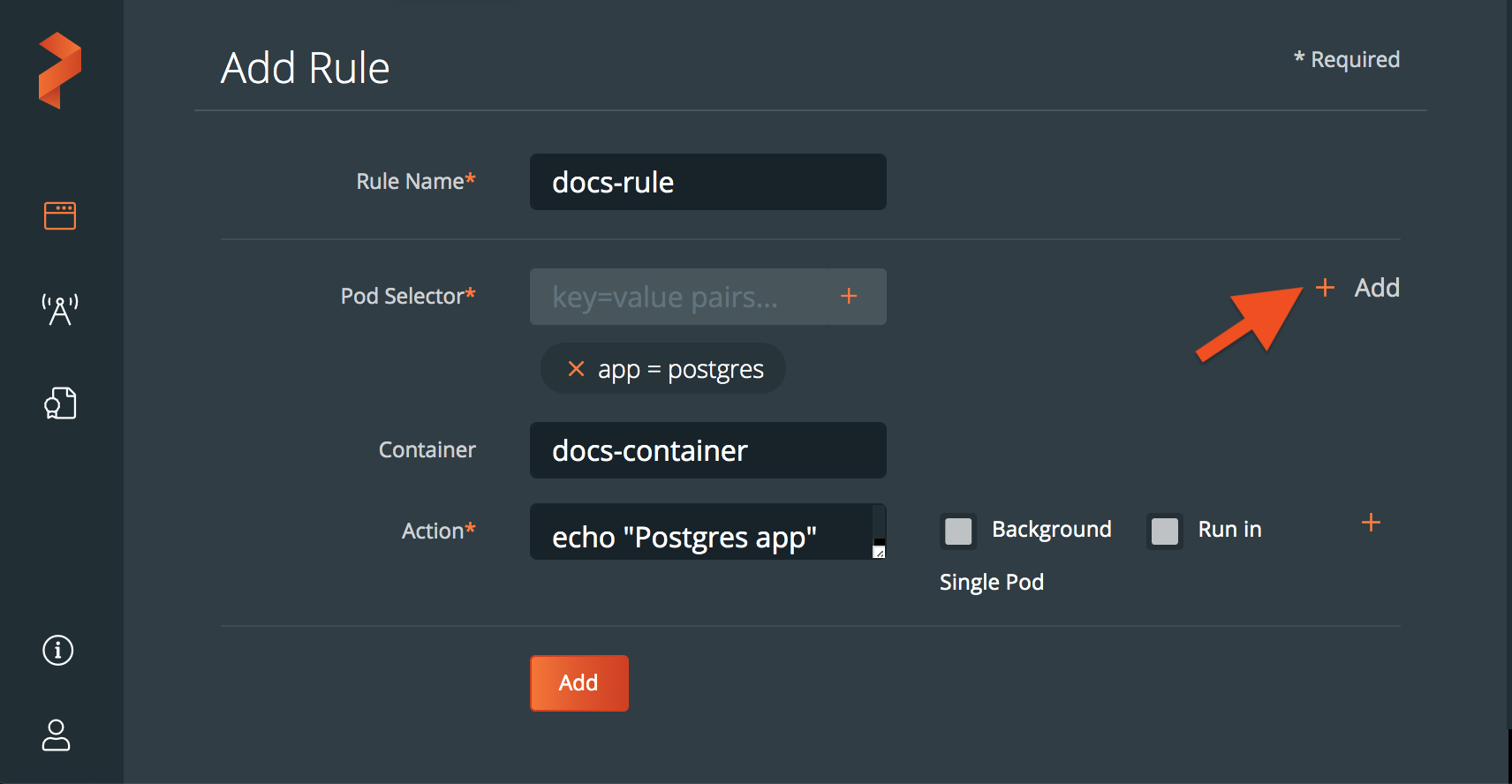
(Optional): Select the + Add icon to add more sub-rules:
Select the Add button to create the rule:
Once you have created a rule, you are ready to associate it with a backup.
🗃️ Add cloud accounts
4 items
🗃️ Add backup locations
2 items
🗃️ Add clusters
10 items
📄️ Create backup rules
1. From the home page, select Settings, Rules to open the cloud settings page:
📄️ Create schedule policies
1. From the home page, select Settings, Schedule Policies:
🗃️ Create and restore backups
4 items
🗃️ Backup stateful applications
7 items
🗃️ Enable object lock
4 items
🗃️ Share backups with users and groups
7 items
🗃️ Label backups and resources
3 items