Add AWS/S3 cloud account
Prerequisites
In AWS, create an IAM role with the following permissions:
ec2:DeleteSnapshotec2:DescribeInstancesec2:CreateTagsec2:CreateSnapshotsec2:DescribeVolumesec2:CreateSnapshotec2:DescribeRegionsec2:DescribeSnapshotsec2:CreateVolume
When you try to create a backup using a cloud account, make sure either the bucket is already created, or your credentials include permissions to create a bucket. If a bucket is not already created, you must add the
s3:CreateBucketpermission to your IAM role.If Portworx is not yet installed on the cluster you wish to back up, you must add the following permissions to your IAM role:
s3:ListBucketMultipartUploadss3:ListBucketVersionss3:ListBuckets3:GetBucketAcls3:GetBucketObjectLockConfigurations3:ListMultipartUploadPartss3:PutObjects3:GetObjectAcls3:GetObjects3:ListAllMyBucketss3:GetObjectVersionAcls3:DeleteObjects3:PutObjectAcl
noteTo configure object lock in Portworx Backup, you need to enable additional permissions for the IAM role. For more information, refer to Prerequisites in Create object lock enabled backups.
Add AWS/S3 cloud account to Portworx Backup
Perform the following steps to add an AWS cloud account to Portworx Backup:
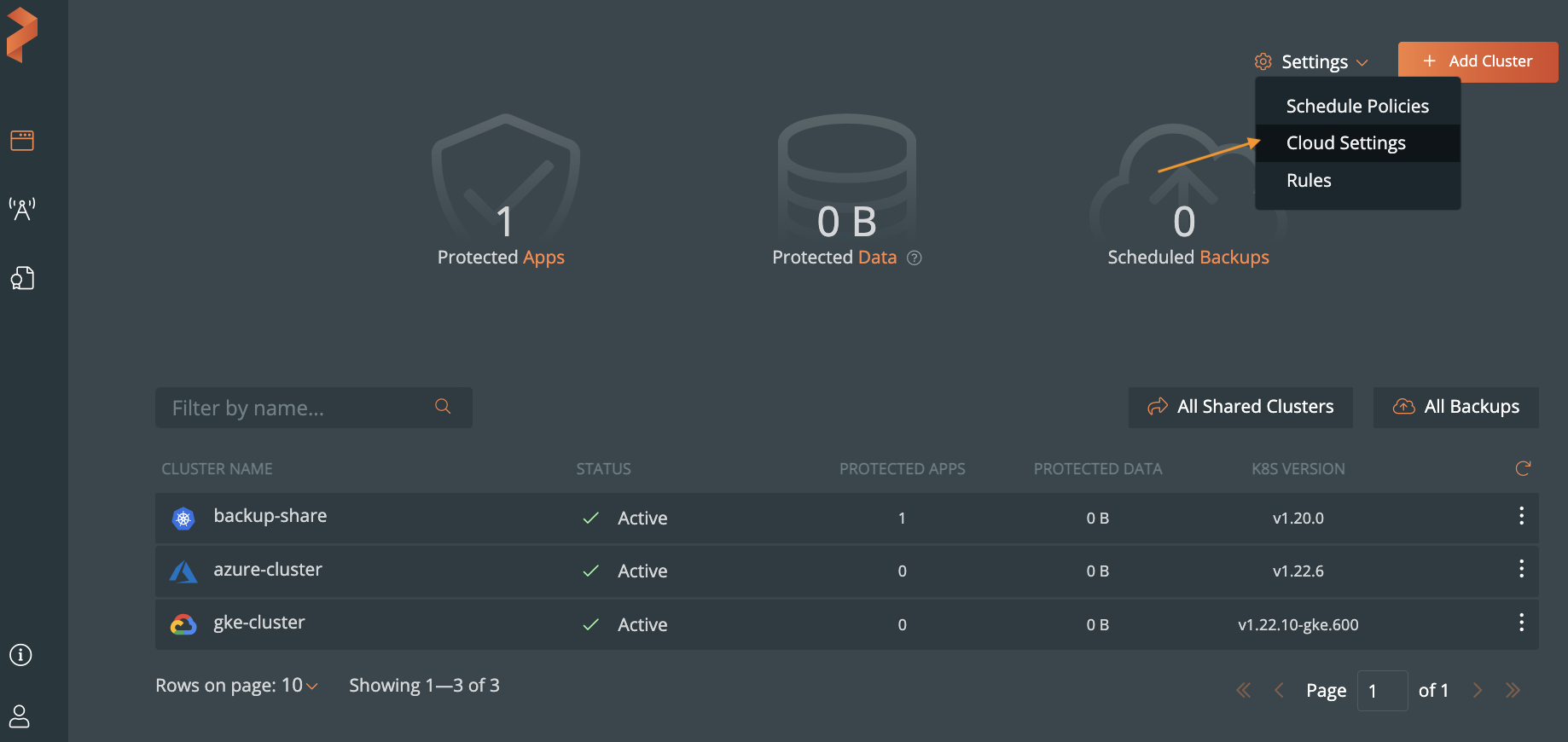
From the home page, select Settings, Cloud Settings to open the cloud settings page:
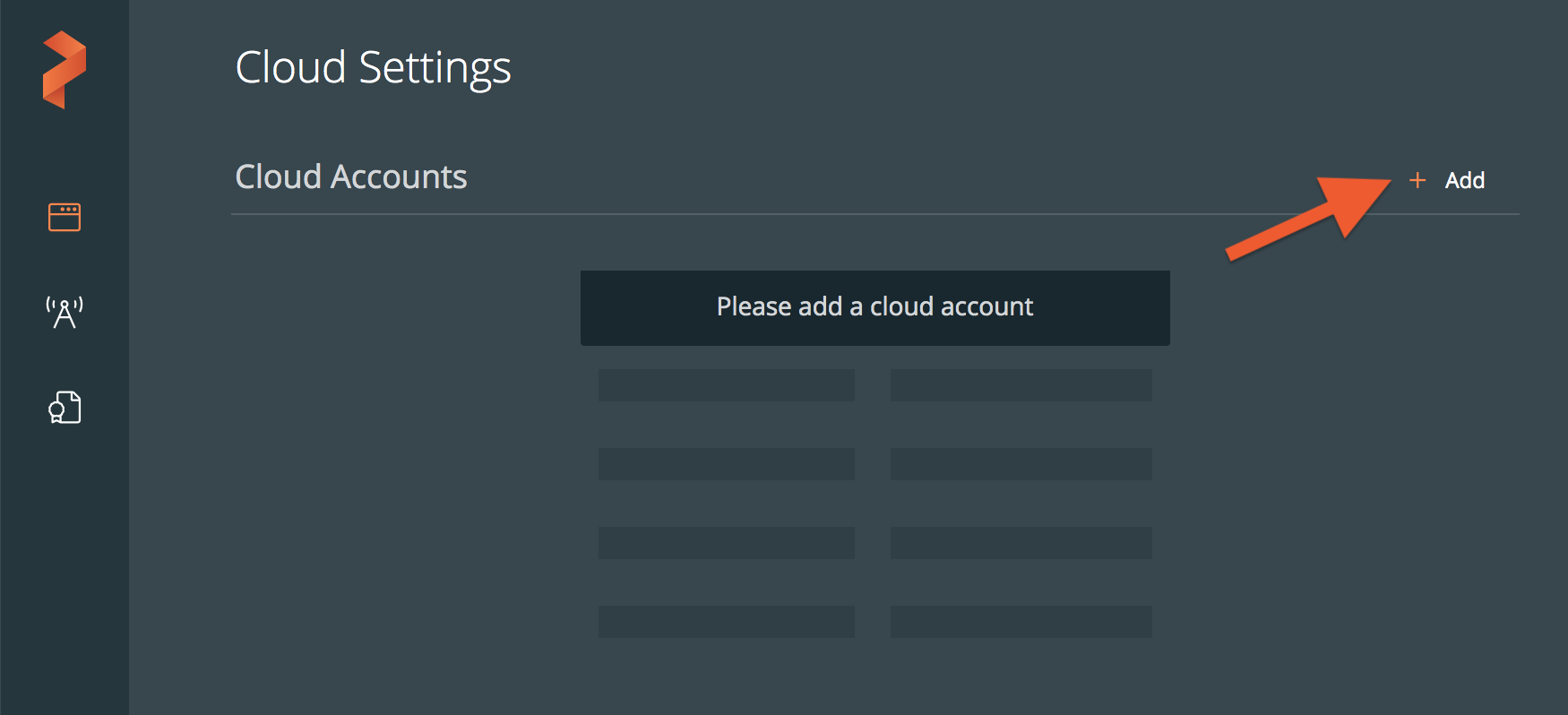
Select Add:
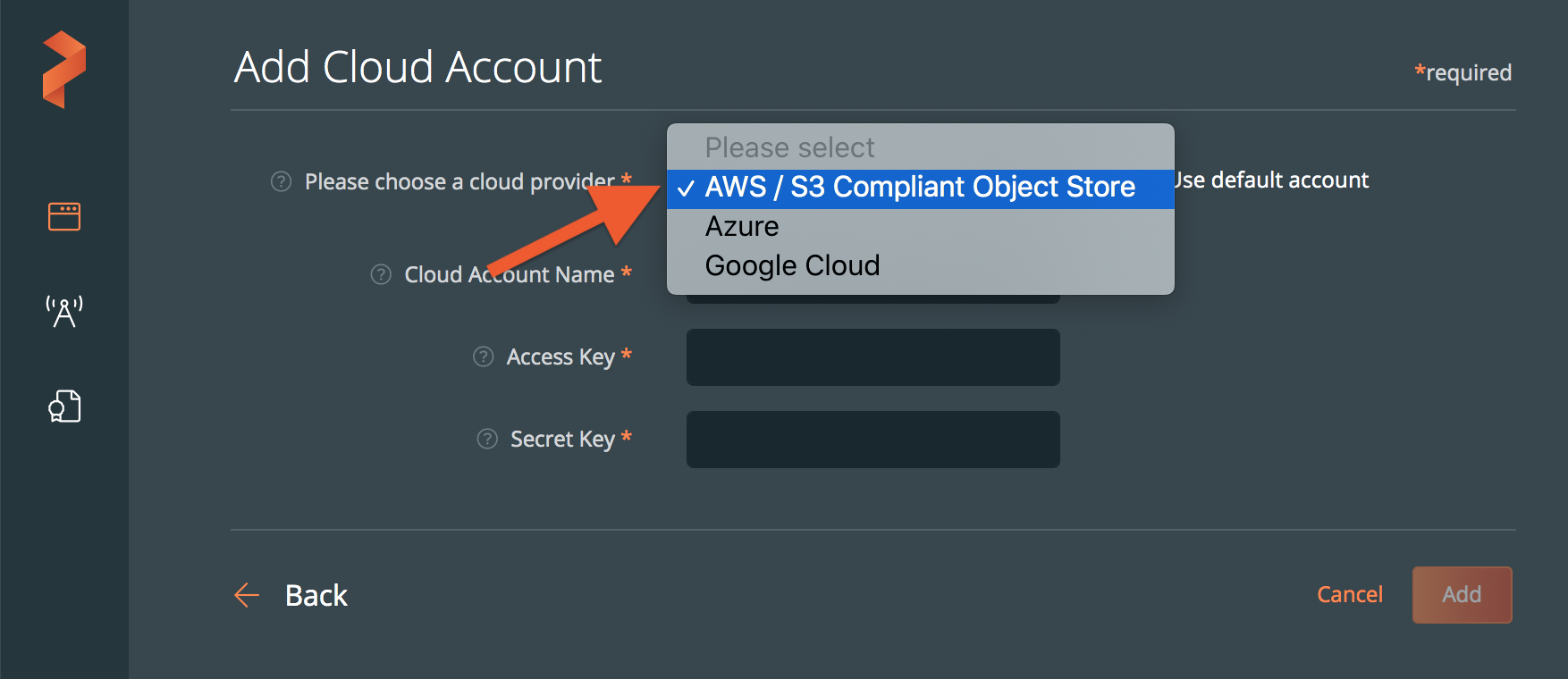
Choose AWS / S3 Compliant Object Store from the drop-down list:
Populate the fields in the Add Cloud Account page:
- Enter a descriptive account name
- In the Public Key field, add your S3 access key ID
- In the Secret Key field, add your S3 secret access key
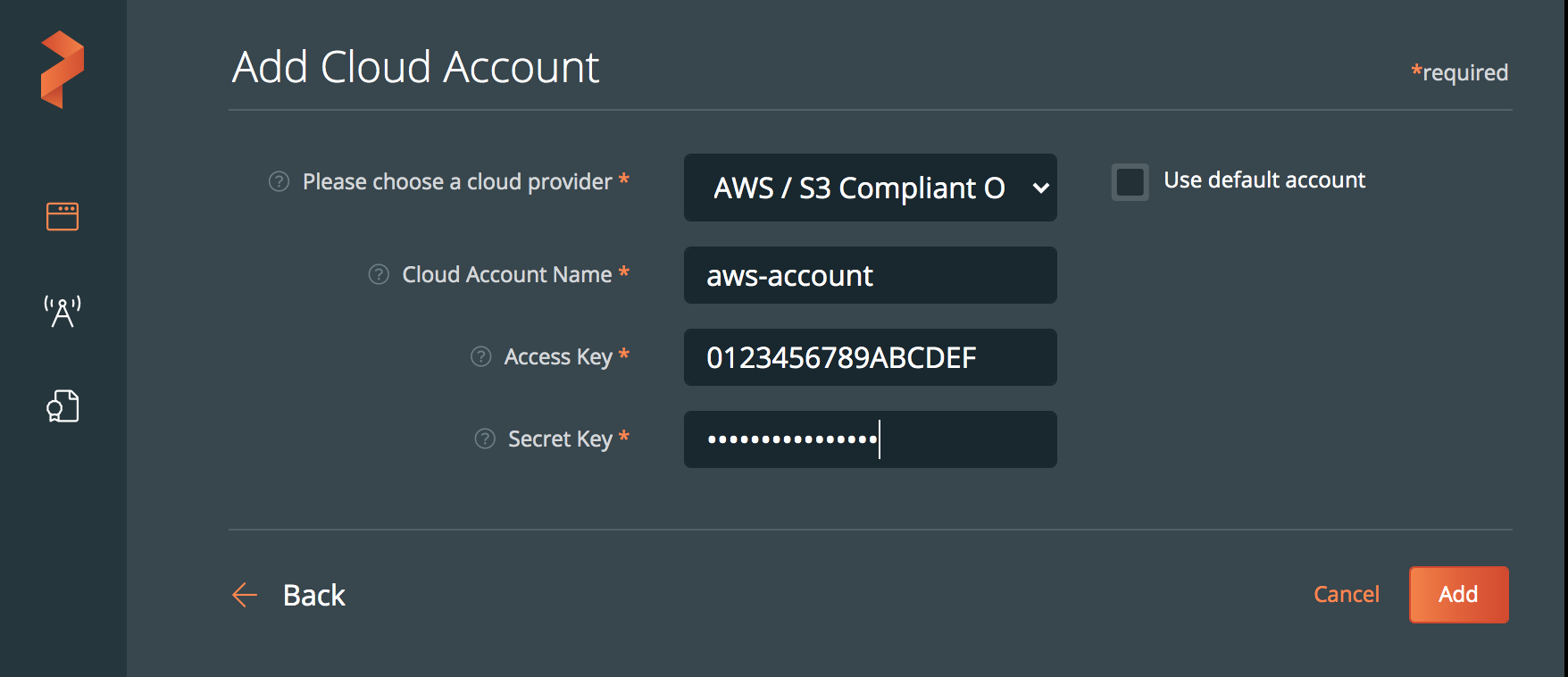
Click Add.